![[object Object]](https://s3.us-west-2.amazonaws.com/worklenz.com/assets/worklenz-light-mode.png)
![[object Object]](https://s3.us-west-2.amazonaws.com/worklenz.com/assets/worklenz-dark-mode.png)
How to create labels
Let’s Create a Lable
To add a new label for our task, you can have to use the main two methods. the Task list, you can see the “group by” dropdown box.
-
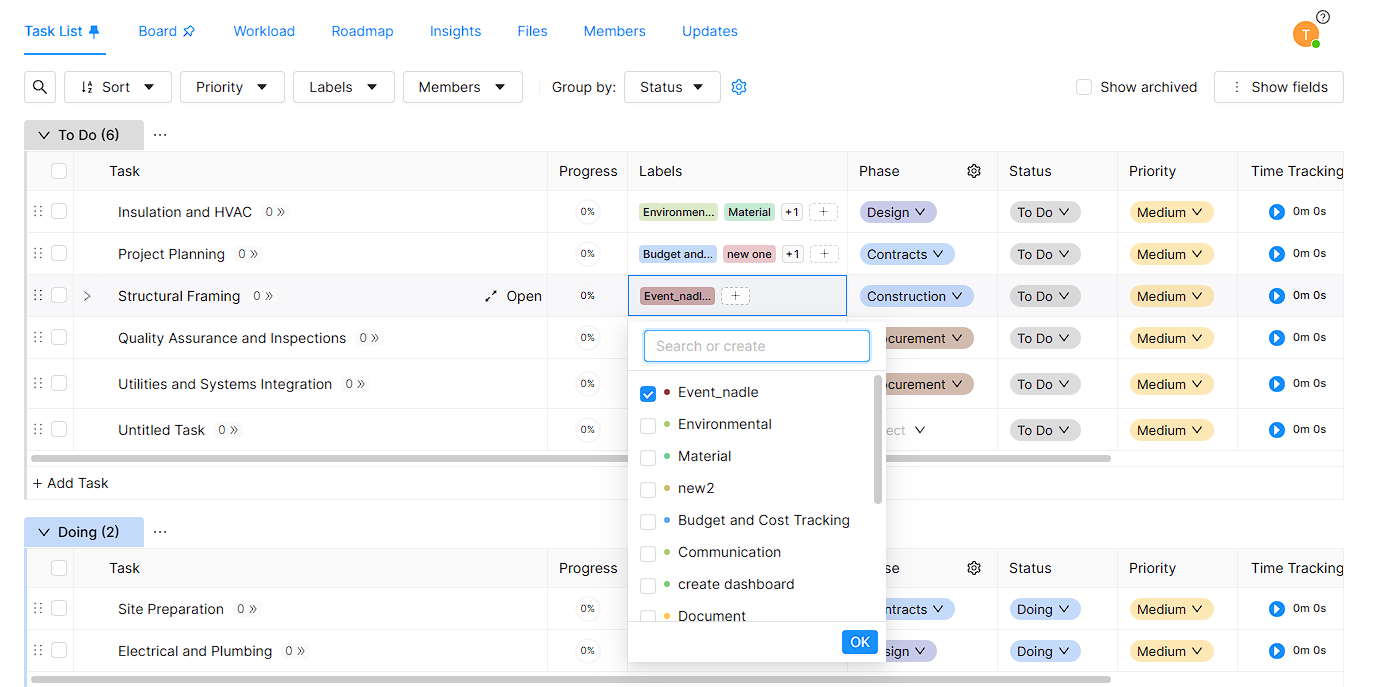
In the Task list, you can see the “Labels” column in the table. You have to use this column to add new labels,
- First you should click + sign in the Lables column.
- Then it will open the new dropdown with previous labels.
- You can select previous labels or create your own ones.
- If you want to create a new label, You can just type a new label name inside the given Search or Create text box.
- Press the Enter Button, then it will create and add it to your label list.
- Press OK button finally.
-
You also can create new labels in the task-adding process.
-
First, you should click the Create Task button located in the top left corner.
-
After it will open Create Task Drawer on the left side.
-
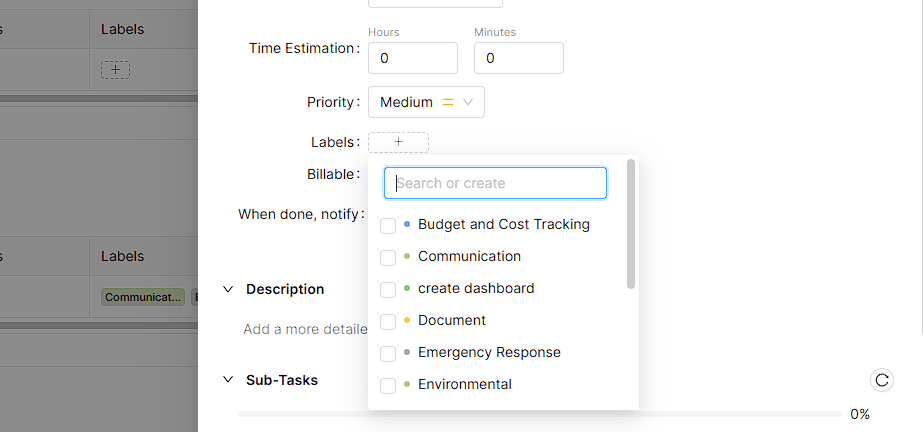
You can see Lables section with + sign.
-
Click that + sign and it will open a new dropdown with the previous label list.
-
You can select previous labels or create your own ones.
-
If you want to create a new label, You can just type a new label name inside the given Search or Create text box.
-
Press the Enter Button, then it will create and add it to your label list.
-
After you add labels, It comes to the Task List interface and the new labels can be seen in all label dropdowns. You have to easily select your new label at any time.