![[object Object]](https://s3.us-west-2.amazonaws.com/worklenz.com/assets/worklenz-light-mode.png)
![[object Object]](https://s3.us-west-2.amazonaws.com/worklenz.com/assets/worklenz-dark-mode.png)
How to create a task
Task
A task lets you manage your work, activities, and everything you need to get things done within your project. Once you’ve set up your project, the next step is to create tasks. Each task represents a unit of work and is a part of your overall project.
Create a task
After navigating to your project, you can create a task in multiple ways:
1. Using the create task button
- Click the Create task button on the top right corner.
- The task drawer will open, allowing you to add details and configure the task.
2. Using the add task button in the task list or board view
- Click the Add task button available in each status section in the task list or board view.
- Enter the task name and press Enter to create the task.
- Click the Open button next to the task name to open the task drawer for adding more details.
3. Import from a task template
- You can also import a task directly from a pre-built task template. See the task templates section for more details.
Task drawer
Once the task drawer is open, you can add more details and customize the task. The following attributes are available:
- Title - give your task a name at the top of the drawer. Use the dropdown on the right side to set the task status.
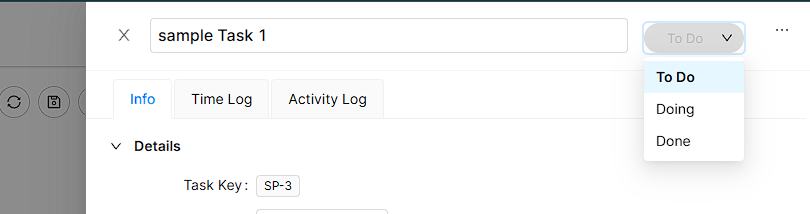
- Task key - a unique identifier for the task, automatically generated.
- Phase - select the appropriate phase for the task.
- Assignees - assign team members to the task using the + icon.
- Due date - set the start and due dates for the task.
- Time estimation - set the estimated time required to complete the task.
- Priority - select the task priority from the dropdown list.
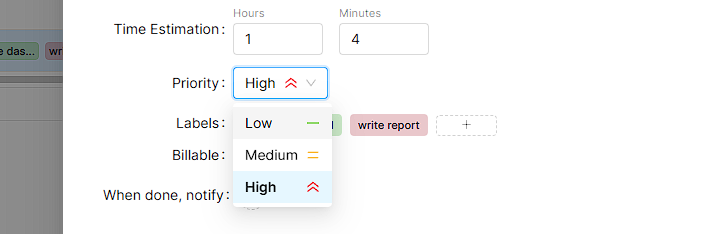
- Labels - add labels to categorize the task.
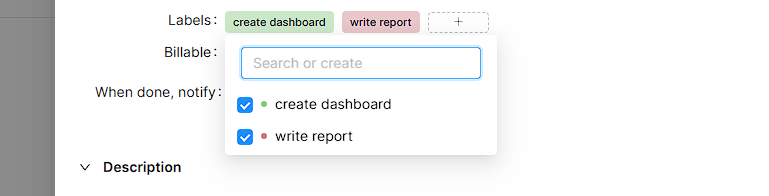
- Billable - toggle the billable option on or off. When enabled, the task is marked as a paid/billable task.
- When done, notify - choose who should be notified when the task is completed.
- Description - add a detailed description of the task.
- Sub-tasks - create sub-tasks under the main task.
- Dependencies - use the + Add new dependency button to link dependent tasks. You can also remove dependencies.
- Attachments - attach files to the task using the + icon.
- Comments - add comments related to the task.