![[object Object]](https://s3.us-west-2.amazonaws.com/worklenz.com/assets/worklenz-light-mode.png)
![[object Object]](https://s3.us-west-2.amazonaws.com/worklenz.com/assets/worklenz-dark-mode.png)
Add/invite new member to team
Invite a new member to your team
To invite new members to your team, click the Invite button on the top navigation bar. You will have two options to invite members:
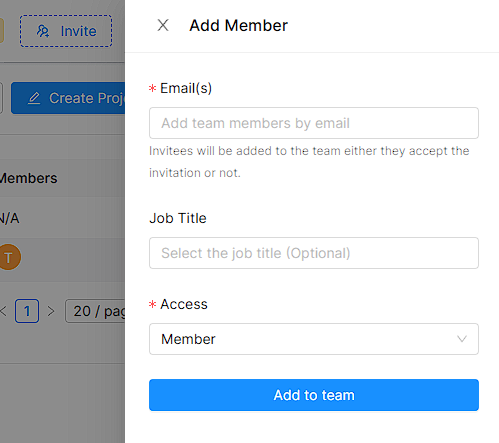
Invite with email
- Click the Invite with Email option.
- Add one or more email addresses of the members you want to invite.
- Set the access level for each member (Member, Admin, or Team Lead).
- Click Send Invitation.
- Invited members will receive an invitation email and can join the team by completing the sign-up process.
Invite with link
- Click the Invite with Link option.
- Click the Create Link button to generate an invite link.
- Copy the generated link and share it with others through any preferred method (email, messaging apps, etc.).
- Anyone with the link can join the team by signing up if they don’t have a Worklenz account, or by signing in with their existing Worklenz account.
Note: Members will be added to the currently active team, which is shown on the top menu bar on the right side. The active team is marked with a green check mark in the team dropdown.
You can also add members to your team via Settings > Team Members > Add New Member. See Create new team/workspace for more details.